What we shipped in September 2026
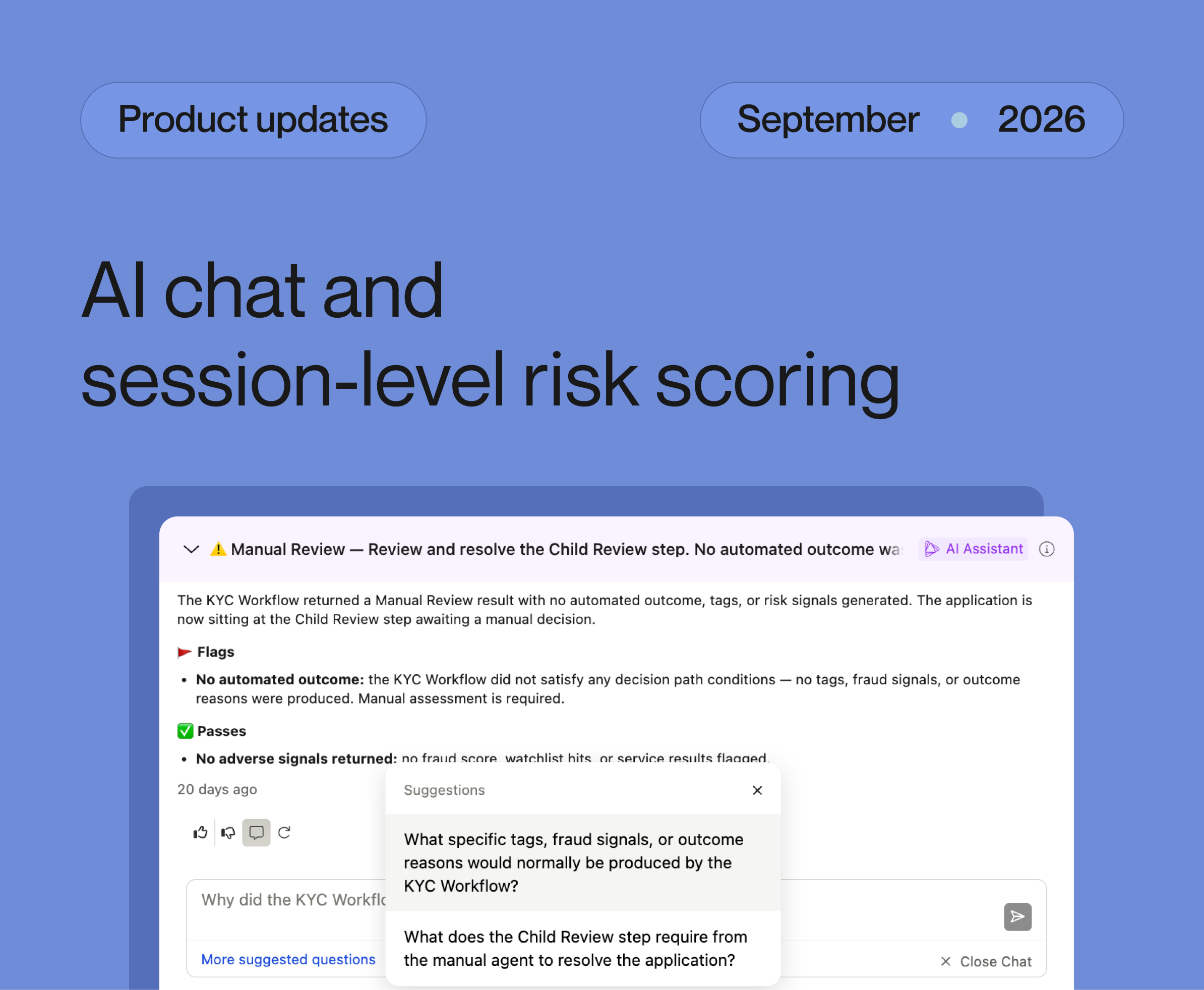
Chat with AI Analysis, get instant support from AskAlloy, use Session Risk Scores, and more. Catch up on everything we shipped in September.
Chat with AI Analysis, get instant support from AskAlloy, use Session Risk Scores, and more. Catch up on everything we shipped in September.

New undo/redo functionality in the Workflow Editor makes it easier to experiment, iterate, and fix mistakes when you're building or updating your policies.
With Undo/Redo, you'll be able to:
You'll see the new Undo/Redo buttons directly in the Workflow Editor toolbar.

We’re excited to introduce our new, AI-powered support experience that makes it easier to get the help you need when you need it.
With the new chat experience, you’ll be able to:
You’ll see the new widget appear directly in the Alloy dashboard, the Alloy login screen, and our Help Center. As always, you can still reach our support team at [email protected]
The new Alloy Marketplace, custom attribute management, a redesigned application review experience, and more. Explore August’s updates in our latest recap.
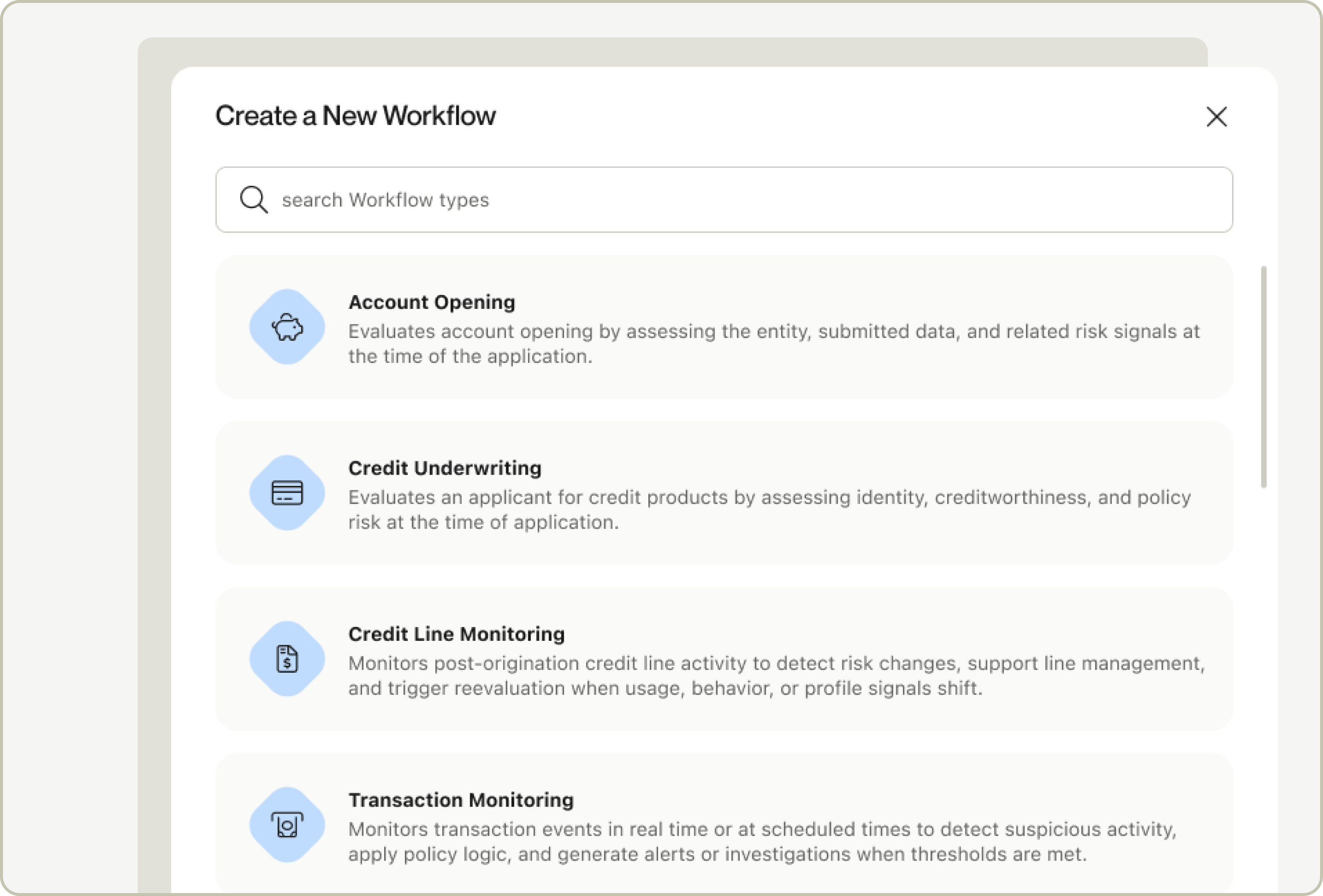
Every workflow you build in Alloy now carries a clear, canonical use case — what it's evaluating, and why — replacing the old, looser workflow types.
A clear, structured answer to "what is this workflow for" powers more accurate insights, tailored review experiences, and smarter benchmarking across everything downstream.
If you're managing existing workflows, there's nothing you need to do. We're migrating every existing workflow into the new taxonomy automatically, based on how it's configured today, and your existing integrations will keep working exactly as they do now. You'll simply start seeing clearer, more consistent labeling across the dashboard.
For new workflows, you'll notice the creation flow asks a few more targeted questions upfront, designed to make your setup faster and less ambiguous.
For the full breakdown of the new Workflow types, see our documentation here.
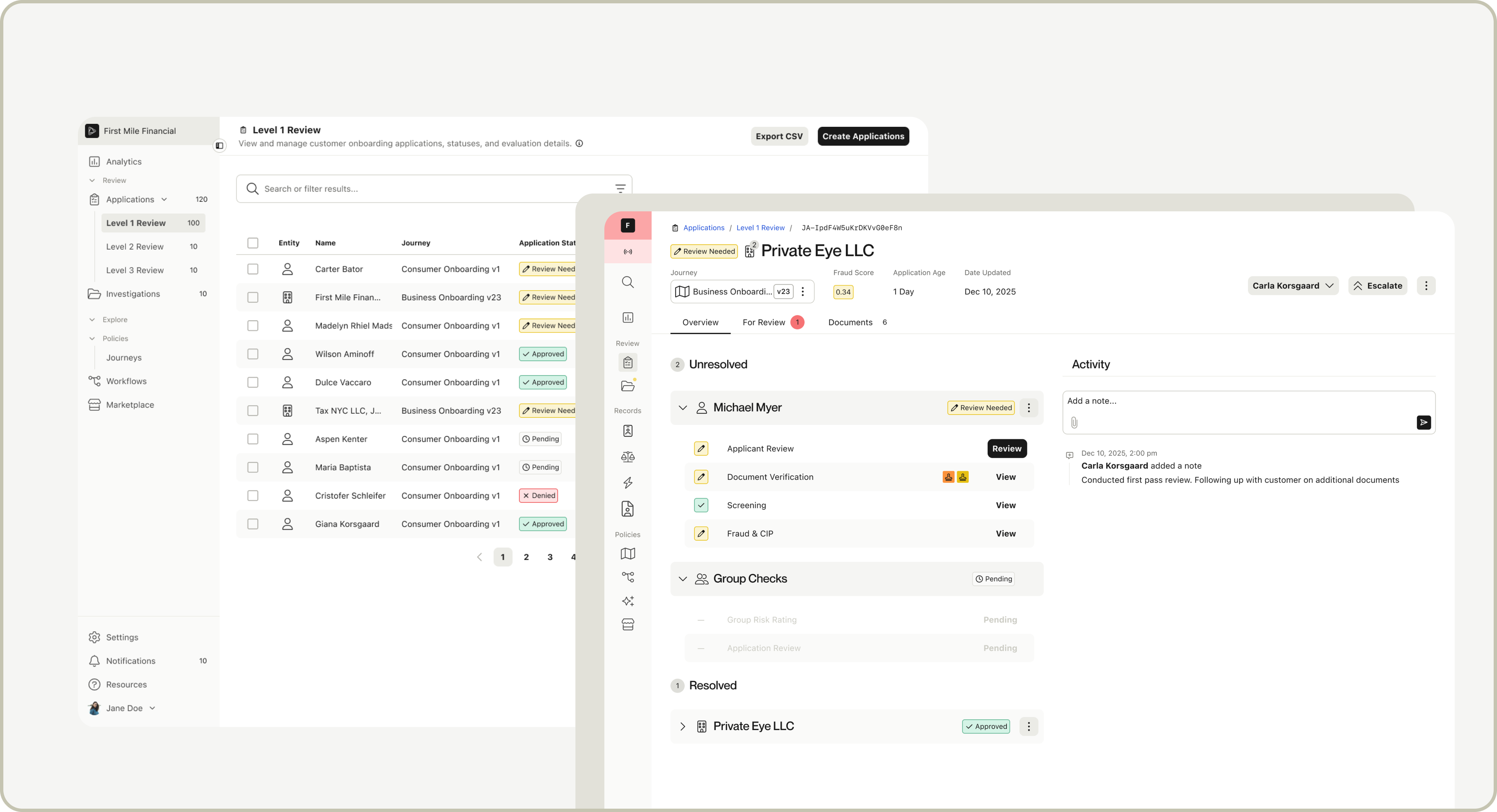
We've rebuilt the way you review applications — its designed to focus on speed, cleaner better organized data, and designed around how your team actually works. Your feedback during beta directly shapes what we build next.
What's new:
This is beta and opt-in — your current experience stays exactly as it is. Try the new one, share what you think, and switch back at any time. More improvements are on the way.

Alloy's AI Assistant now has a dedicated landing page in the platform, making it easier to explore available use cases and identify where AI-powered automation can fit into your workflows.
Browse starting points across use cases like KYC and AML Investigations. Each page outlines what the AI Assistant can do, what it can automate, and how it can be customized to your workflows, with the option to request more information or a POC directly within the platform.
The AI Assistant landing page is now available to Alloy clients from the main navigation menu or through a new dropdown option in the Journey editor’s Add Node button.

The Partner Center is now Alloy Marketplace, bringing together partner discovery and the Policy Library in a single destination for discovering, testing, and deploying workflow building blocks like partner integrations, policy logic, attributes, and more.
Alloy Marketplace includes all of the Partner Center functionality you already use, with the Policy Library now integrated into the same experience (while still accessible from the workflow editor). As you browse or filter partner solutions, you'll now see the corresponding policy snippets available for each integration.
With Alloy Marketplace, you can:
Alloy Marketplace is now available from the main navigation menu, for all Alloy clients. Log in to check it out today.