The last name identifier field for sandbox personas is no longer case sensitive. This will make it easier to run sandbox personas whether or not the last name is capitalized.
Alloy now allows you to make workflow decisions based on a proprietary dataset or model. For example, your company may have its own fraud model based on your own device and location data that you would like to apply in a workflow. Custom models were previously supported but now clients can set up these models much more quickly and independently.
We now allow clients to configure a “Custom Model” service within an Alloy workflow in the following way:
You host and configure an endpoint that Alloy will POST to during an evaluation with any service data that have been configured to run before the custom model
Your model returns a score to Alloy
You can configure decision thresholds based on that score in the Alloy dashboard
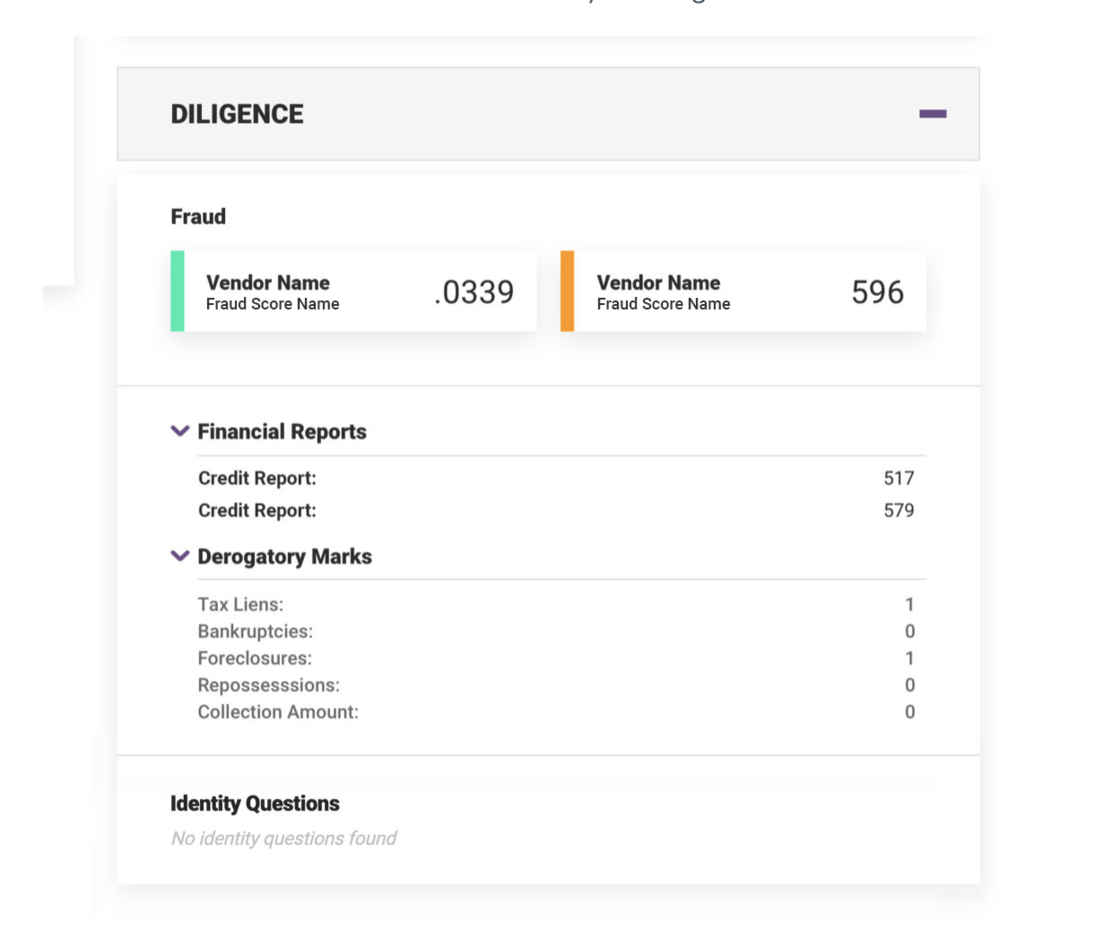
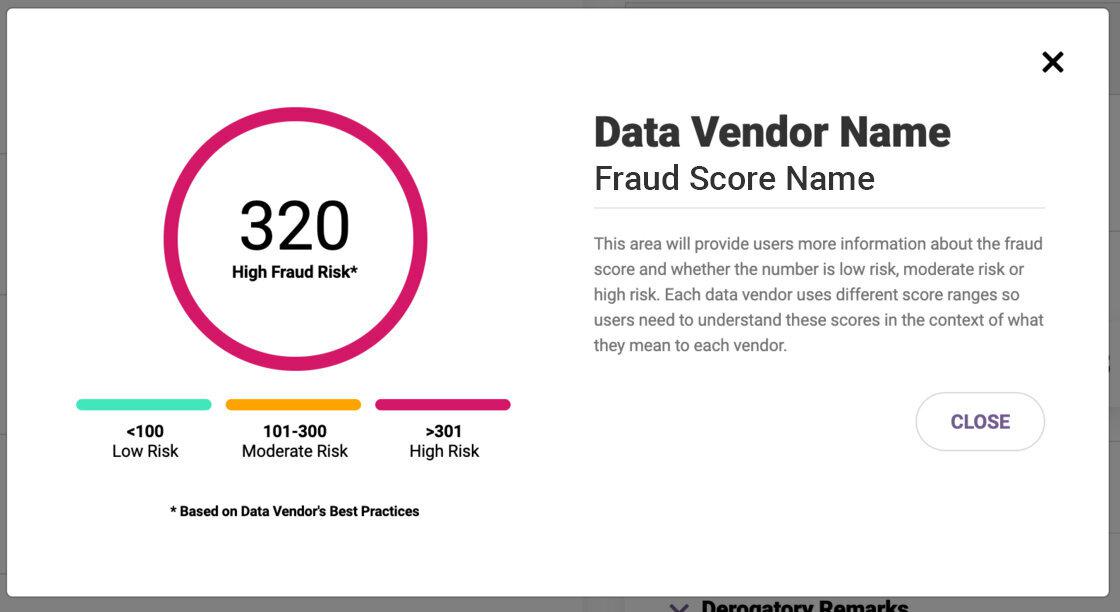
We have updated the Diligence panel to provide more contextual information on each of the fraud scores, making it easier to quickly assess the risk of each Entity. On the Diligence panel, third party fraud scores are now color-coded to reference each vendor’s best practice ranges. Green indicates low risk, orange is moderate risk and red is high risk.
When a user clicks the score, they will see more information about that specific fraud service and how they generate their score. This contextual information will give users clear insights to determine the next steps for each Entity.