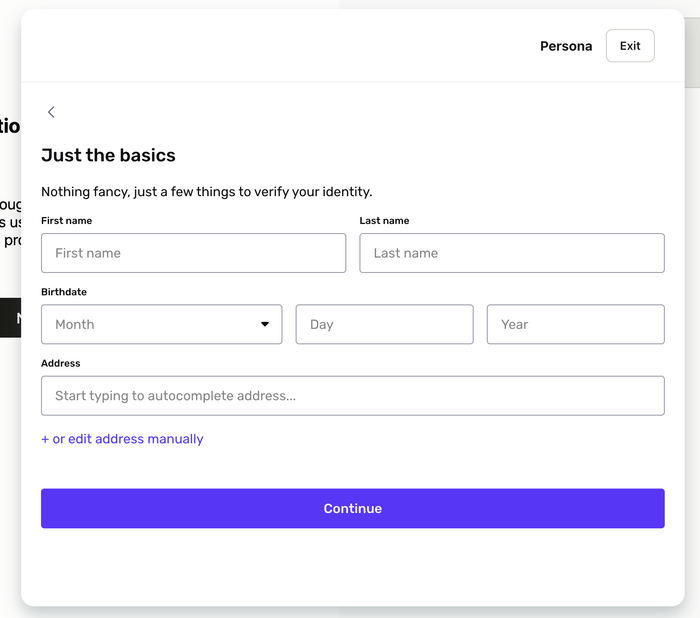
The Alloy SDK supports Persona's Form template flow!
Clients can create a template in their Persona dashboard using their "database" form flow and input that template ID in their Persona Workflow SDK Config in the Alloy Dashboard.
If you’d like to get set up with Alloy SDK, please reach out to your CSM.
Configuring front end integrations for device tracking is hard but with the same singular SDK integration, clients now have access to document verification, phone centric verification, and device risk. Please reference Alloy’s API docs or reach out to your CSM help on setup.
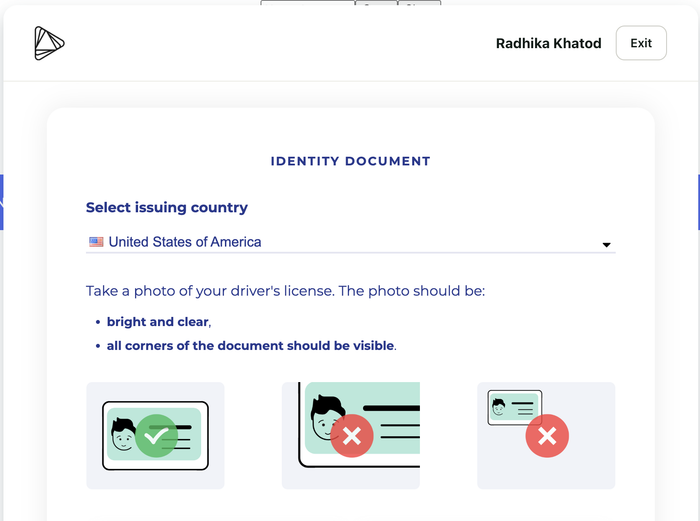
The Alloy SDK now supports the SumSub document flow.
To get started, simply select "SumSub" as a plugin option in your workflow if you are already using the Alloy SDK. Dashboard setup instructions are here and API docs are here. Reach out to your CSM if you'd like to get it set up.
Clients using Journeys can now assign permissions to determine which Roles can view select Journeys, enabling clients to maintain separate access for their agents based on their organizational structure and business needs.
To get started, navigate to Settings > Roles. To enable access to all Journeys for a given Role, from the Roles section, check the top-level option ‘Journeys’. This means this role will have access to all non-archived Journeys (including draft versions) in the account, in addition to all Applications, Workflows, Evaluations, Reviews, and Entities associated with those Journeys. To restrict access to specific Journeys, choose the Journeys in the drop down – this will allow the user to have access to all Applications, Workflows, Evaluations, Entities, and Reviews that are associated with the Journey(s) selected there. To restrict access to Journeys altogether, deselect the top-level ‘Journeys’ option.
Note: these permissions will not override access for users who have access to ‘All workflows’ in Settings > Workflows.
Posted Jan 27, 2023
Flexible business document upload in the Alloy SDK
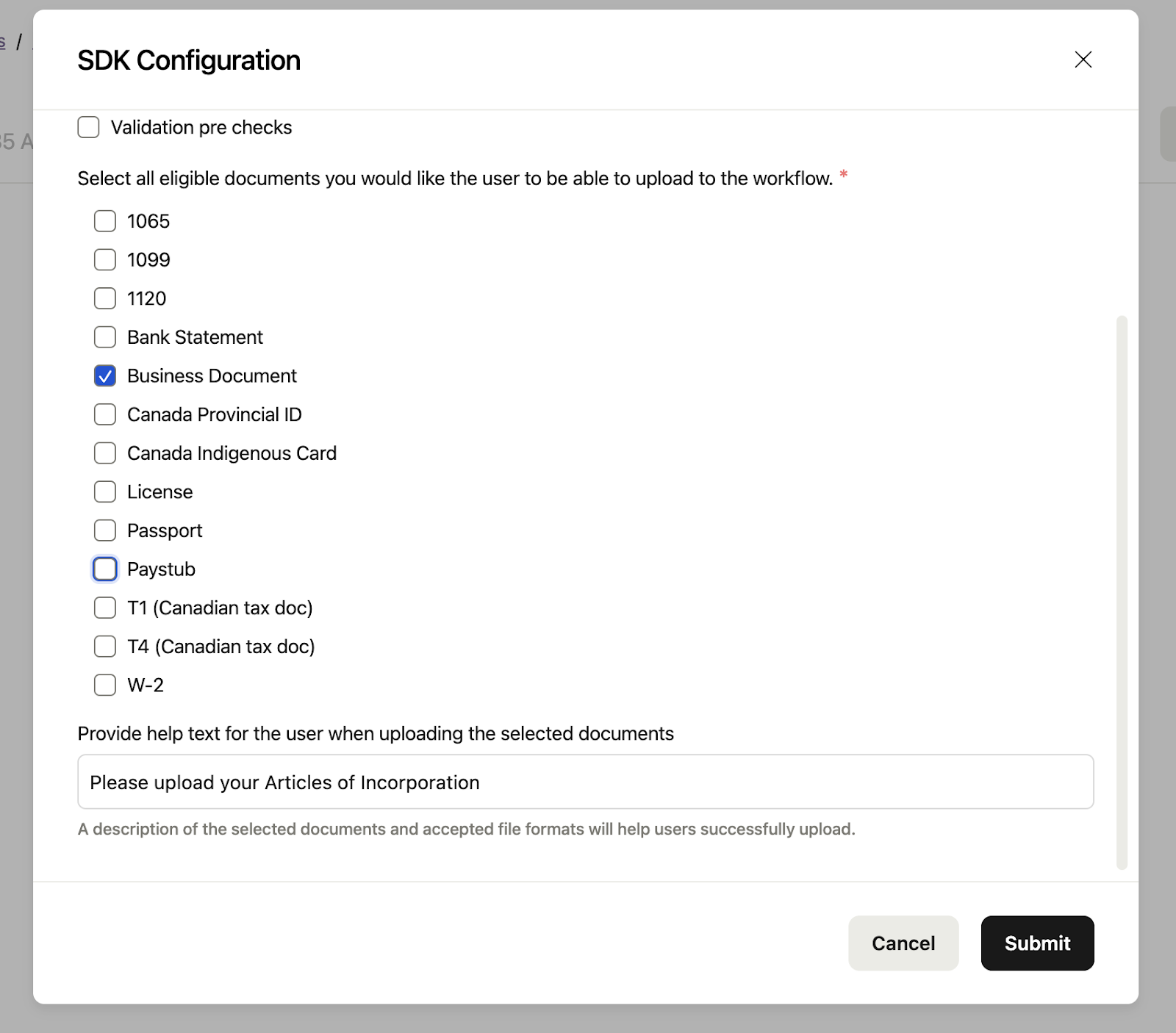
The Alloy SDK web plugin now supports a wider range of business documents with a new document type ‘Business Document’, which allows clients to more flexibly configure their chosen business document (e.g. Articles of Incorporation) without having to choose from a pre-set menu of options.
On the SDK Configuration screen, clients will be able to select the option ‘Business Document’ and optionally enter help text to guide the user during the document upload process (for example: “Please upload your paystub as secondary income verification”.
Dashboard setup instructions for the Alloy SDK are here and API docs are here. Reach out to your CSM if you'd like to get it set up.
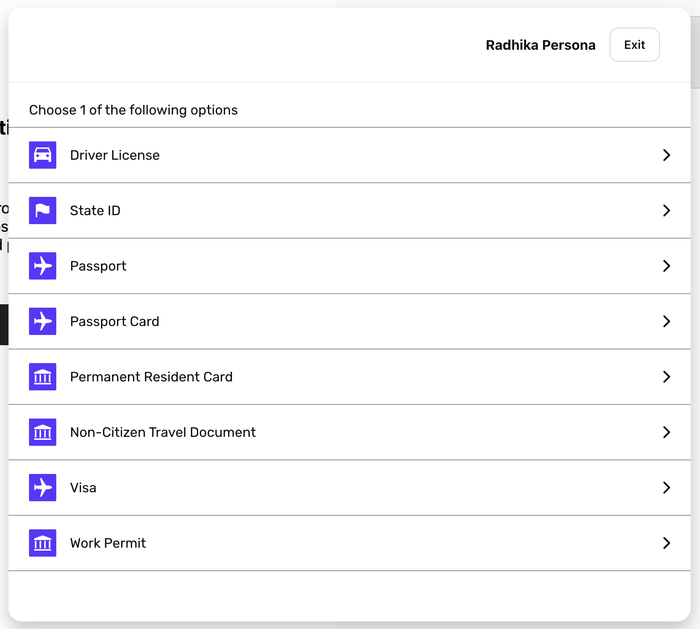
The Alloy SDK now supports the Persona documentation verification flow. Persona provides identity verification with extensive global coverage and liveness detection.
If you’re already using the Alloy SDK, simply select "Persona" as a plugin option in your workflow. No code changes are required. Dashboard setup instructions are here and API docs are here. Reach out to your CSM if you'd like to get it set up.
Posted Jan 13, 2023
Global PII available in the dashboard for decisioning
Clients can now view global identity data identifiers (such as national ID # or business registry ID) in the Alloy dashboard in addition to being able to utilize these identifiers in their decisioning, making the Alloy platform more accessible for users across the world.
Starting today, clients can see and leverage global identity attributes on all Alloy dashboards and tools including (but not limited to): Entity page, Entity and Business Evaluations pages, Workflow Rule Builder, Identity Element Velocity, and Allow/Denylists.
Clients can now self-service their SDK key directly in the Alloy dashboard. Previously, clients had to rely on Alloy admins to create the SDK key.
Simply select ‘SDK Key’ from the Settings’ menu to view your unique SDK key. To create a new key, click the ‘Generate new key’ button and respond to the prompt to confirm the action. Please note, generating a new key will require you to update any existing code. You will also be able to view and amend Alloy List domains on the same page.
Agents must be appropriately permissioned to view and generate keys.
If you’d like to get set up with Alloy SDK, please reach out to your CSM.